Custom RPZ Blacklist Insertion
The Import RPZ lists service allows the importation of custom RPZ lists onto the DNS Proxy.
File variation checking and possible importation are performed every 30 minutes.
To manage the service, access the admin panel at A Advanced configuration » [Z] - Import RPZ lists
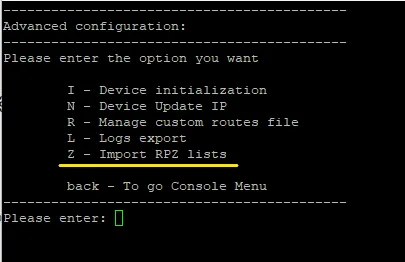
It is advisable to block Proxy & Bypass Filters on the Cloud panel for the proper functioning of RPZ policies.

Initial configuration
- Access the Import RPZ list menu.
- Enable the service by typing y and pressing ENTER.
- On the next screen, type y and press ENTER to create the fsupload user.
- On the next screen, type Y and press ENTER to proceed with entering the password for the fsupload user.
It is always possible to change the password from the Change fsupload password menu.
How to import an RPZ list
To import an RPZ list, it is necessary to use an SFTP client.
SFTP access parameters
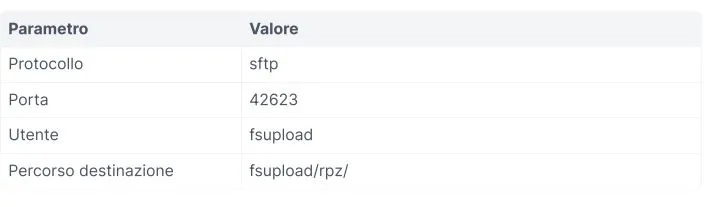
Standard access mode: connect with any SFTP client using the listed parameters and the password chosen during configuration.
SSH key access mode enable the access mode from the Change configuration menu and insert the SSH keys of the machines authorized to access via the Manage SSH Keys » Add key menu.
Supported list formats
The following formats are supported:
- Standard RPZ zone file
- Domain List
Standard RPZ zone file
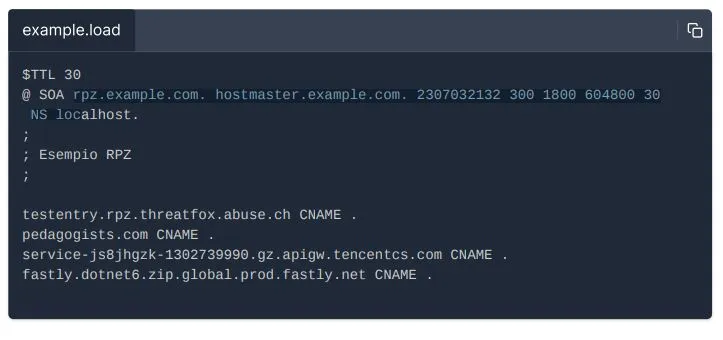
Standard RPZ file with Policy Triggers and Policy Actions RPZ zone example
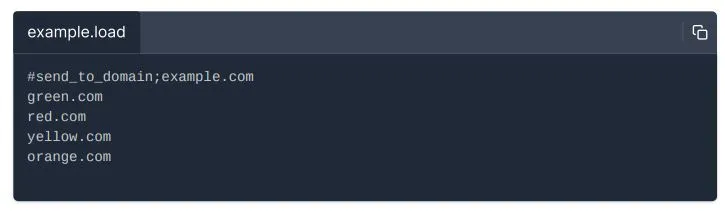
Domain List It is possible to import a list of domains to block and define the policies of the list. The policy definition must be inserted on the first line respecting the following format:
Variable definition
- block_type indicates the block type, insert one of these values.
- block the domain is blocked with a Not-existent domain error.
- send_to_ip the domain is resolved with the IP indicated in destination.
- send_to_domain the domain is resolved with the domain indicated in destination.
- destination mandatory if block_type is send_to_ip or send_to_domain, indicates the IP or domain it must resolve to.
Example file with resolution to the example.com domain

RPZ insertion into the configuration
- Access the machine via sftp with the fsupload user.
- Access the fsupload/rpz/ folder.
- Upload the file with the .load extension.
- Wait for the procedure timing or, to execute the import immediately, access the Check RPZ lists now menu.
RPZ removal from the configuration
- Access the machine via sftp with the fsupload user.
- Access the fsupload/rpz/ folder.
- Remove the file with the .db extension.
- Wait for the procedure timing or, to execute the removal immediately, access the Check RPZ lists now menu.
Import error check
- Access the machine via sftp.
- Access the fsupload/rpz/ folder.
- Download the file with the .error extension and remove it from the folder.
- Open the file with a text editor and scroll to the end of the file to verify the error.
- Correct the file and retry the RPZ insertion into the configuration.
List import example
The example below shows the import of an RPZ file using the sftp command, available on both Windows and Linux, in SSH key access mode. Note: upon first access, authorization to access is requested, type yes and press ENTER.
Import RPZ List Menu
Disable service / Enable service
Access the menu to deactivate or activate the RPZ import service.
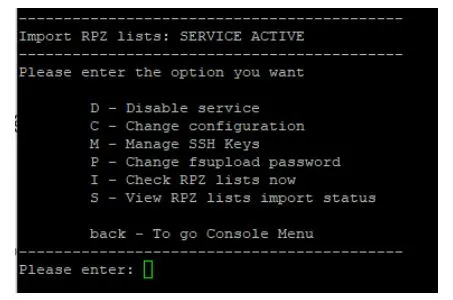
Disable service
- Access the [D] - Disable service menu.
- Type y and press ENTER to confirm the deactivation.
Enable service
- Access the main Import RPZ lists menu.
- Type y and press ENTER to confirm the activation. Note: if the fsupload user was not present, it will be created and configured
Change configuration
Enable access via public SSH key
- Access the [C] - Change configuration menu.
- Type y and press ENTER to prepare access.
- Type y and press ENTER to immediately manage the enabled SSH keys, or type n and press ENTER to return to the Import RPZ lists menu. It is possible to manage the enabled SSH keys from the menu.
Manage SSH Keys
Through this menu, it is possible to manage the SSH keys authorized to access.
- Access the [M] - Manage SSH Keys menu
View authorized keys
- Access the [V] - View authorized keys menu.
- If there are multiple SSH keys, the system divides the display into blocks, press the spacebar to view the next block.
Add key
- Access the [A] - Add key menu.
- Enter an identification name for the key and press ENTER, only letters, numbers, and the _ character are allowed. This name will be used for the deletion of the key.
- Insert/Copy the SSH key of the machine authorized to access and press ENTER.
Delete key
To delete an SSH key, it is necessary to know the identification name given to the key during insertion. If you do not remember the name, it is possible to view it via the Manage SSH Keys » View authorized keys menu.
- Access the [D] - Delete single key menu.
- Enter the identification name of the key to be deleted and press ENTER.
Clear all keys
Through this menu, all SSH keys will be deleted:
- Access the [C] - Clear all keys menu.
- Type y and press ENTER to confirm the deletion.
Change fsupload password
- Access the [P] - Change fsupload password menu
- Type Y and press ENTER to proceed with entering the password for the fsupload user.
Check RPZ lists now
The checking of the lists to import is performed automatically every 30 minutes; if execution is necessary, access this menu.
- Access the [I] - Check RPZ lists now menu.
- Type y and press ENTER to confirm the check.
- At the end, the system will show the current import status.
View RPZ lists import status
- Access the [S] - View RPZ lists import status menu
- Type y and press ENTER to confirm.
Legend
- Last check/Last import » last check performed
- Last check: indicates that the check was performed but no variations were present.
- Last import: indicates that the check was performed and variations were applied.
- Loaded » RPZ lists successfully loaded into the configuration file with a .db extension.
- To be parsed » RPZ lists to be checked by the system file with a .load extension.
- To be removed » RPZ lists to be removed, they are loaded in the configuration but the .db files are no longer present in the folder.
- Error » RPZ lists that were checked but generated an error and were not loaded in the configuration file with a .error extension.