Fritz!Box configuration
12 min
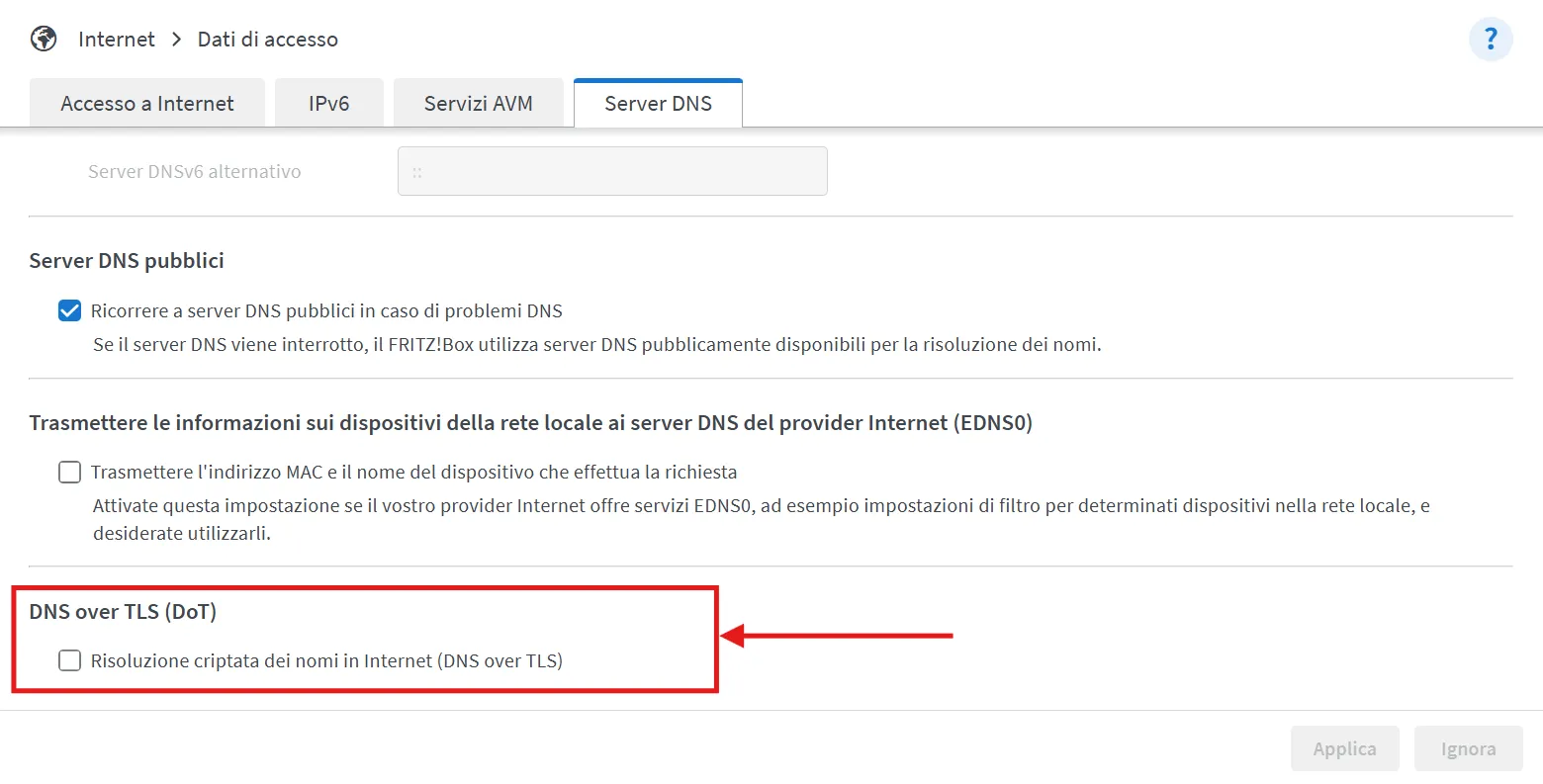
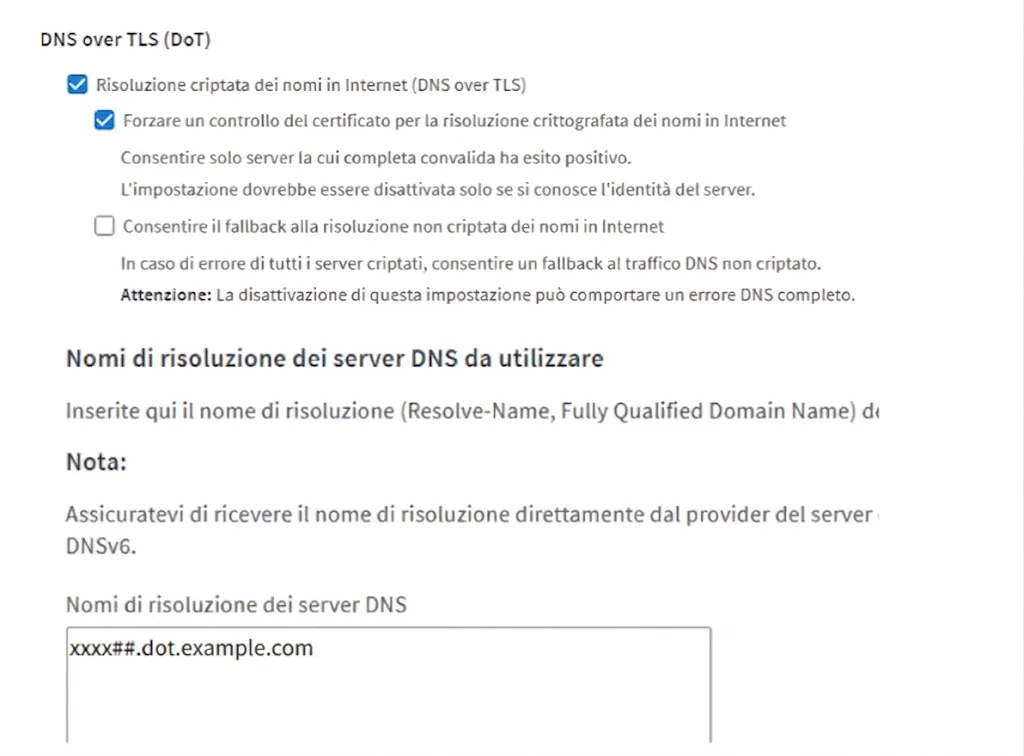
configuration guide fritz!box 7690 to access via browser type fritz box password insist3974 if it is the first access, connect the pc client via lan cable 1\ wan configuration (internet access) internet > account information > internet connection internet service provider "other internet service provider" connection "connection to a cable modem (cable connection)" connection settings ip address 185 236 106 4 subnet mask 255 255 255 0/24 default gateway 185 236 106 1 primary and secondary dns server 1 1 1 1 / 8 8 8 8 mac address obtained automatically 2\ lan configuration (local network) home network > network > network settings > ipv4 addresses ipv4 address 172 22 1 1 subnet mask 255 255 255 0 dhcp server active (checked) range from 172 22 1 20 to 172 22 1 200 make sure the device is reachable via the local network before confirming keep in mind that by disabling the dhcp protocol, it will no longer be possible to access the device via the direct fritz box link if necessary, follow these settings to restore the connection windows control panel > network and sharing center > change adapter settings select the connected network interface > right click > properties double click on internet protocol version 4 (ipv4) select "use the following ip address" and proceed by configuring the following settings ip address enter a free ip belonging to the same subnet of the device default gateway enter the ip address of the router (e g , your fritz!box) subnet mask usually 255 255 255 0 3\ dynamic dns (dyndns) path internet > permit access > dyndns status checked please note if you want to force traffic through the dns service, you must disable the fallback to public dns in case of problems, in internet > account information > dns server 4\ dns over tls (dot) to confirm the activation of the dot service, you will need to have registered a phone number on which to confirm the option remotely, or have direct/physical access to the fritz!box device path internet > account information > dns server if you need to force communication solely via dot, deselect the highlighted checkbox allow fallback to unencrypted dns resolution on the internet 5\ wi fi (wireless network) path wi fi > wi fi network data currently in use network name flashstart fritzbox password 30804546987960042082 change current settings if necessary 6\ event log path system > event log 7\ remote device restart path system > backup > restart > restart 8\ certificate update importing a user certificate eliminates browser security warnings and ensures the authenticity of the connection, which is essential for secure remote access path internet > permit access > fritz!box services if you need to enable only the http connection to the router, select the following checkbox in internet access 9\ blocked websites, allowed websites and network applications path internet > filters > lists the fritz!box has four main ways to set blocks on the wan network blocked websites here you can set the type of domain to block (e g , blacklist) allowed websites here you can enter the list of domains to allow for browsing ip block lists where you can enter the ip list to block network application section where you can indicate custom rules for certain protocols for redirection from one port to another (e g , image below) after indicating the network application name, you will be able to enter network application name and enter protocol and source and destination port (in both cases, it will be possible to enter a specific ip range) a rule in itself is not enabled by default, but must be inserted within an access profile, linking it to a specific device within the network 10\ access profiles path internet > filters > access profiles “with access profiles, you can limit the internet usage time, filter websites or block specific network applications in addition, you can disable internet access for individual devices ” the next step after the port enabling rules and lists is the access profiles an access profile is a set of rules assigned to a single or multiple devices within the network the setup is as follows in addition to deciding the various exceptions and filters for the configured user, it is possible to determine what limitations at the network applications level can be chosen for the profile if you want to insert redirecting rules other than port forwarding, or dns hijacking, to redirect and force routing to a custom dns, it is not a feature allowed by fritz!os the only way to do this is exactly to set manual blocks on specific ports via network applications other ways to ask how to configure the fritz!box router fritz!box router configuration how to